

Whether you’re monitoring your own name, your business, or your industry, you’ve probably experienced the frustration of receiving too many alerts. Too many emails and updates will lead to missing valuable information.
That’s why learning how to use Google News Alerts with multiple keywords (keyword sets) is so important. When configured properly, Google Alerts can monitor multiple keyword sets simultaneously and provide clean, relevant updates.
This guide describes how Google Alerts works, how to configure it to monitor multiple keywords, and provides advice on avoiding common pitfalls. All parts of the guide were written to be easy to read and to apply directly.
What Does Google News Alerts Actually Do?
Google Alerts is a free monitoring service that sends an email whenever new content is found that matches the keywords you enter. Google Alerts scans new pages across news websites, blogs, and general web content for mentions of your keywords and sends you an alert when your keyword(s) are mentioned.
Users commonly use Google Alerts to monitor competitors, manage their reputation, analyze competitors, and track industry trends. Real power exists when you expand beyond a single keyword.
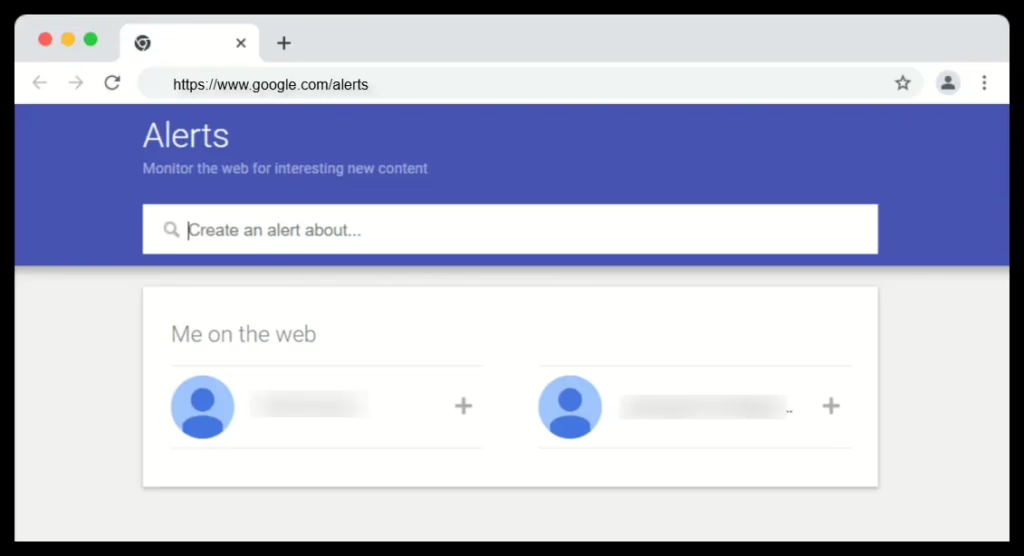
Can Google Alerts Monitor Multiple Keywords?
Yes. Google Alerts can monitor multiple keywords by using two methods of combining keywords.
You can combine multiple keywords in a single alert by using Boolean logic, or you can create multiple alerts and receive them in a single digest email. Both techniques work. The technique you choose will depend on how closely related your keywords are.
Combining Keywords Using Boolean Logic
Boolean logic enables you to specify exactly how Google Alerts will determine if content matches your keywords. Boolean logic is the most powerful technique for tracking multiple related concepts.
Using OR for Alternative Terms
Use the OR operator when you want to track alternative terms.
Example:
“Acme Robotics” OR “Nova Automation”
This alert will catch mentions of either Acme Robotics or Nova Automation. This is very useful when tracking your competitors, comparing products, and tracking partners.
Using AND for Related Terms
Use the AND operator when you want to track multiple terms that appear together.
Example:
“electric vehicle battery” AND recall
This will limit your results and minimize irrelevant content. This is particularly useful when tracking risks and monitoring products.
Using Quotation Marks for Specific Phrases
Quotation marks will instruct Google to only track the exact phrase you entered.
Example:
“West Coast Data Systems”
This is critical for tracking brand names, executive names, and product names. Without quotation marks, your alerts will likely track unconnected results.
Mixing Boolean Operators to Create Advanced Searches
You can combine operators to create more advanced searches.
Example:
(“BrightPath Health” OR “BrightPath Medical”) AND lawsuit
This is a common configuration for reputation management and preventing public relations crises.
Tracking Multiple Unrelated Keywords
In some situations, creating multiple alerts may be preferable to tracking many keywords at once.
If your keywords are unrelated, or if you want to set each keyword to use different settings, create a separate alert for each keyword. Google Alerts permits you to compile all your alerts into a single daily or weekly digest email.
For instance, instead of having a single complex alert for your brand name, executive name, product line, and industry trend, you could have separate alerts for each.
This approach works best when you want the flexibility to organize your alerts.
Step-by-Step Instructions for Setting Up Alerts With Multiple Keywords
Setting up a Google Alert with multiple keywords is relatively straightforward.
- Log into the Google Alerts webpage. Sign-in to your Google account.
- In the Search Box, enter your keyword or keyword combination.
- Click “Show options” to open the alert settings.
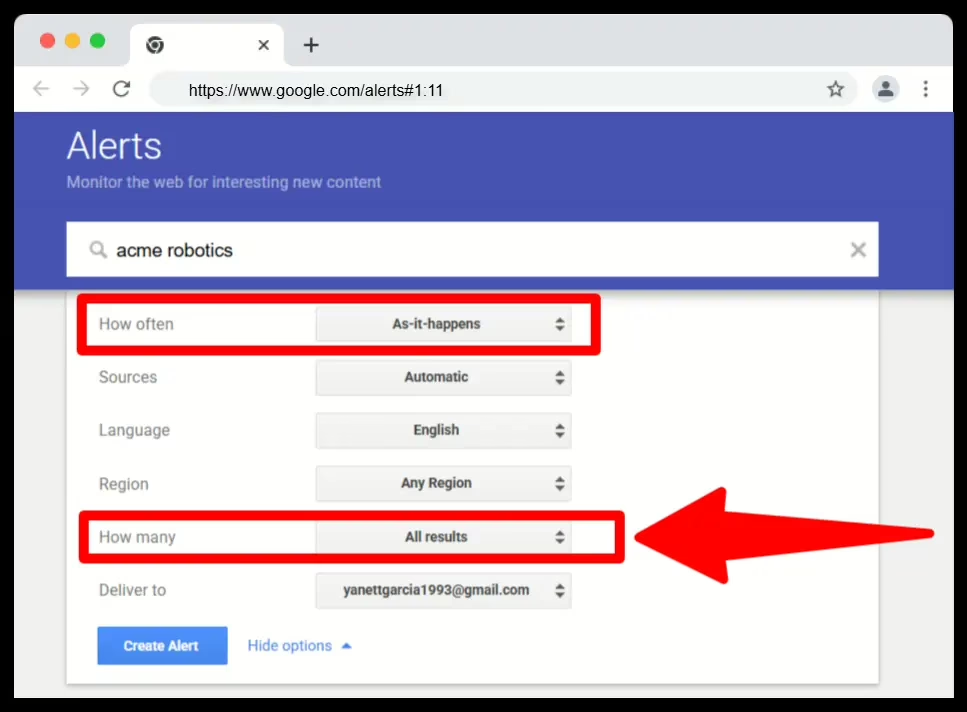
- Configure frequency, sources, region and volume to your liking.
- Once you are happy with your choices, click the “Create alert” button.
- Your alert will then start tracking keywords immediately.
Settings Affecting Your Alert
Most users leave Google Alerts with the default settings. Most often this means your alerts will result in poor performance.
The Frequency of Your Alerts Determines How Often You Will Receive Notifications
Your frequency options include as-it-happens, daily and weekly email notifications. Daily email notifications strike a good balance between the amount of information you’ll receive and how much work it takes to check and respond to your alerts.
Selecting the Sources of Your Results
Choosing which types of sources you want your results to come from is another setting you should pay attention to. Choose the “News” filter if your primary interest is in getting news coverage of your keyword. Otherwise, choose the “Web” filter.
Monitoring Region and Language
Selecting the region and language of your keyword monitoring will also help you filter out unnecessary information. This is especially important for businesses focused on regions outside the US or businesses with a strong local presence.
Controlling the Volume of Your Results
Lastly, controlling the volume of your results is important. You can choose whether to receive high-quality results only (“only the best”) or all possible results (“all results”). Choosing to receive only the best results will give you less information, but the information will be of better quality.
Using Digest Email to Manage Multiple Alerts
If you’re going to create multiple alerts, consider configuring them to use a digest email.
A digest email compiles all your alerts into a single message instead of sending you a new message every time there is a hit. This will make reviewing and responding to your alerts easier and faster.
Digest emails are especially useful for tracking your brand, monitoring your market, and keeping tabs on your executives.
Strategic Use Cases for Multi-Keyword Alerts
Google Alerts becomes a more strategic tool when you align your multi-keyword alerts to a specific goal.
Brand monitoring alerts help you track how your name is referenced online and identify potential problems earlier. Reputation management alerts help you discover potential threats such as lawsuits, complaints, or investigative reporting before they become widespread.
Competitor analysis alerts help you learn about new products your competitors release, leadership changes, and partnerships. Content marketers use alerts to find trending topics and story ideas. Sales teams use alerts to stay informed about funding, expansion, and acquisition announcements to identify potential outreach opportunities.
Each use case will benefit from a well-thought-out selection of keyword combinations.
Tips for Creating Clean, Actionable Alerts
Good alerts are informative. Poor alerts waste your time.
Use quotes around specific names. Avoid overly vague terms. Only enter the number of keyword combinations you really need. Regularly evaluate your alerts and adjust them based on their relevance.
If your alerts seem like a chore, tighten up your keywords. If you miss updates, try increasing the alert volume or changing the alert source.
Managing and Deleting Alerts
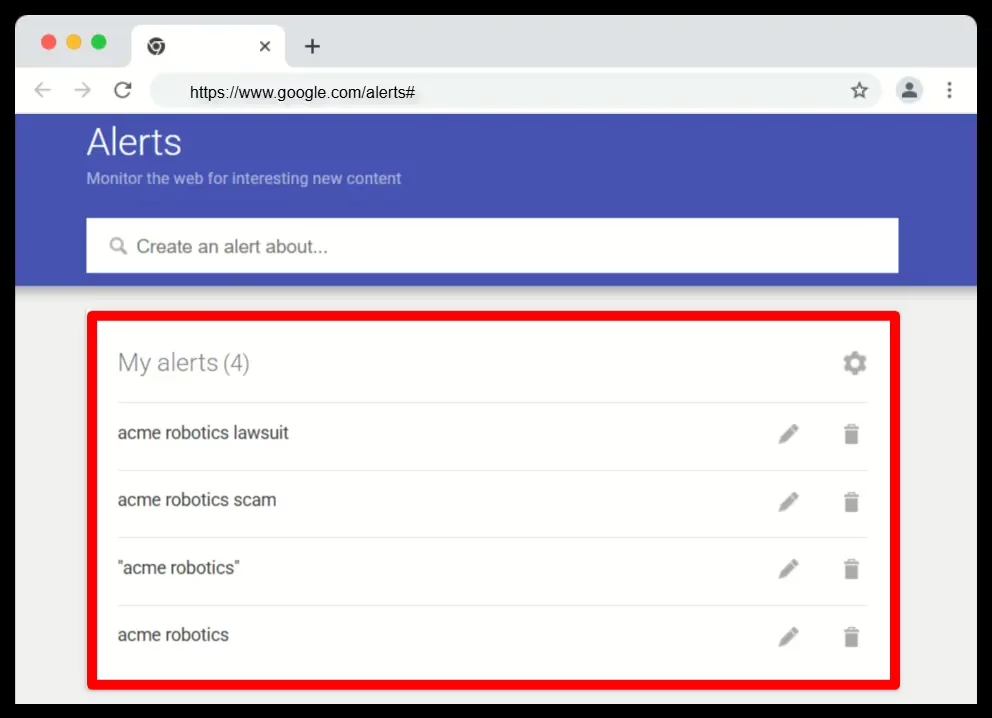
Your alerts are subject to change. From the Google Alerts webpage, you can modify your search terms, change the frequency of your alerts, change the sources of your results, add negative keywords, or completely delete your alerts using the “trash” icon.
Regular maintenance will ensure your alerts continue to support your current operational objectives.
Common Limits of Google Alerts
Google Alerts are great, but they also have serious limitations.
Google Alerts do not typically monitor mentions on social media platforms. There are gaps in topic coverage. Filters are limited. Google Alerts cannot provide reporting or visualizations of your results. Depending on Google’s indexing schedule, some alerts may be delayed.
Given the above limitations, Google Alerts should be considered an early warning system, not a comprehensive monitoring system.
Techniques for Getting Better Results
There are several advanced search operators you can use to greatly enhance the accuracy of your Google Alerts.
You can perform site-specific searches to monitor specific publications. Additionally, you can remove irrelevant keywords to eliminate extraneous information. You can structure your alerts to find keywords that appear near each other rather than anywhere on the page.
Always test your alerts prior to relying on them for real-time monitoring.
Are There Other Tools I Can Use to Monitor My Market?
Some users with growing needs supplement their Google Alerts with dedicated media-monitoring or market-intelligence tools. These tools include social listening, reporting functions, and customized intelligence alerts.
While these tools are useful, they are not required for most individuals or small teams.
For most use cases, Google Alerts is sufficient as a first layer of defense.
Conclusion
Using Google Alerts with multiple keywords is not about tracking everything. It is about tracking what matters.
With the right keyword combinations and the right alert settings, your Google Alerts can serve as a reliable mechanism to protect your reputation, monitor your market, and stay current without all the noise.
The tool is simple.
The advantage comes from how purposefully you apply it.

West Virginia alumni with a background in marketing and sales for both established companies and startups.