
Last Updated on 1 month ago by Admin
You cannot delete a negative review on Facebook. Facebook does not give business owners the option to remove individual reviews, because reviews are meant to reflect real customer experiences. But you are not powerless. You can report reviews that break Facebook’s rules, ask a reviewer to update or remove their post, respond publicly to add context, or turn off your reviews section entirely.
A bad review can sting, especially when you have worked hard to keep customers happy. The good news is that how you handle it matters far more than the review itself. This guide walks through every option you actually have, when to use each one, and how to protect your reputation along the way.
Table of Contents
Can You Delete a Facebook Review?
No. Facebook does not let a business delete a review left on its Page. Reviews, which Facebook calls Recommendations, are designed to show real customer feedback, so the business owner does not get a delete button. That is frustrating when a review is unfair, but it is the same for every business on the platform.
What you can do is influence the situation in four ways: respond to add your side, ask the reviewer to reconsider, report the review if it violates Facebook’s rules, or turn off your reviews section so none show at all. One bad review does not define your business. How you respond is what new customers actually notice.
Your Options at a Glance
| Option | When to use it | What it does |
|---|---|---|
| Respond publicly | Almost always, for any negative review | Adds your side and shows future customers you are professional |
| Ask the reviewer to edit or remove | When the issue can be genuinely resolved | Only the reviewer can change or delete their own review |
| Report the review | When it breaks Facebook’s rules (spam, hate, fake, irrelevant) | Facebook may remove it if it violates policy |
| Turn off the reviews section | Rarely, as a last resort | Hides all reviews, both positive and negative |
Respond Professionally First
Before anything else, respond to the review in public. Your reply is not really for the unhappy reviewer. It is for every future customer who will read the exchange and judge how you handle criticism.
Keep it calm, brief, and professional. Acknowledge their concern, avoid getting defensive, and offer to make it right. Something like: “We’re sorry to hear about your experience. Please reach out to us directly so we can look into this and make it right.” A measured, accountable response often impresses readers more than a spotless review record, because it shows you take problems seriously.
Ask the Reviewer to Edit or Remove It
Only the person who wrote a review can edit or delete it. So if a reviewer is reasonable and you have resolved their problem, it is fair to ask. The key is to earn it first, not demand it.
Respond publicly to open the door, then move the conversation to a private message or email once they reply. Solve the actual issue. Once they are satisfied, you can politely ask: “I’m glad we could sort this out. If you feel comfortable, would you consider updating or removing your review?” Many people will say yes once they feel heard and the problem is fixed. Never pressure them, since a pushy ask can turn a fixable situation into a worse one.
Report a Review That Breaks the Rules
Some reviews cross the line. If a review contains slander, hate speech, spam, or content that has nothing to do with a real experience with your business, you can report it to Facebook. Reporting will not remove a review just for being negative, but it can remove one that genuinely violates Facebook’s policies.
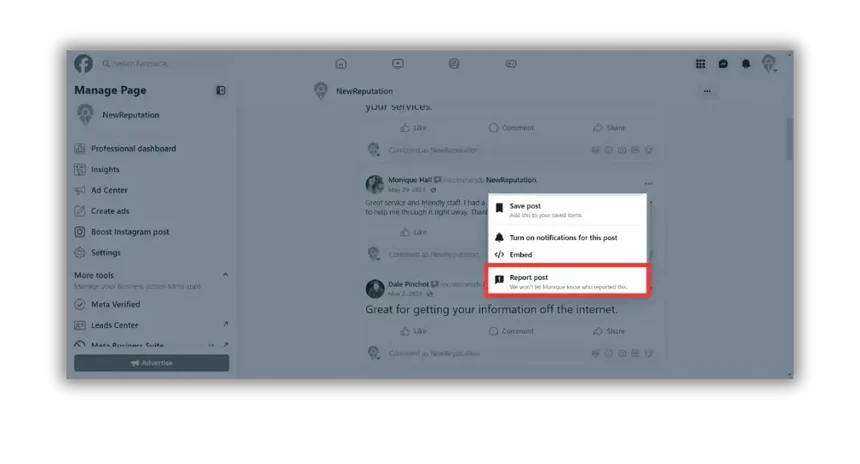
Here is how to report a review:
- Go to the specific review on your Page.
- Click the three dots in the top right corner of the review.
- Choose the report or “Find support or report” option.
- Follow Facebook’s prompts to explain why the review breaks the rules.
Facebook will review your report and remove the content if it violates policy. Be specific about which rule it breaks, since vague reports are less likely to succeed. The same principle applies across platforms, as our guide on removing fake Google reviews explains.
See Your Full Review Profile in One Place
NewReputation’s free scan shows your reviews across Facebook, Google, and other platforms, so you can see exactly where your reputation stands.
- Your ratings and reviews across the platforms customers check
- What appears when people search your business name
- Free scan, no obligation
Turning Off Your Reviews Section
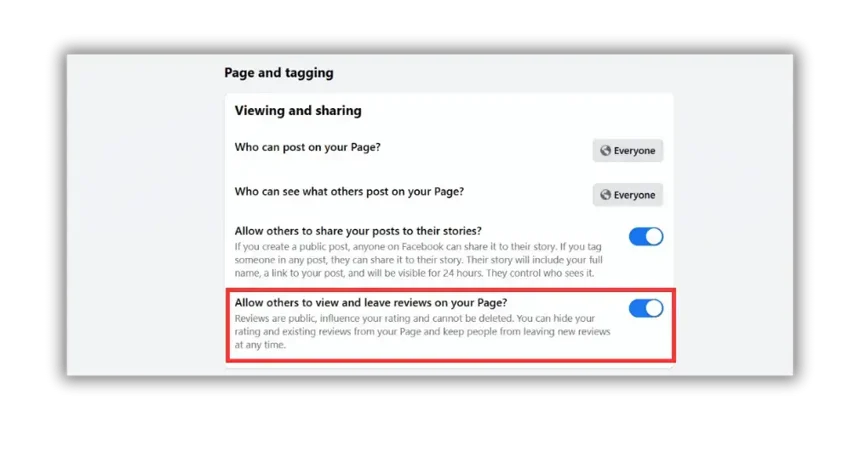
Facebook lets you turn off your reviews section completely. This hides all reviews from your Page, which is why it is a last resort: you lose your positive reviews along with the negative ones.
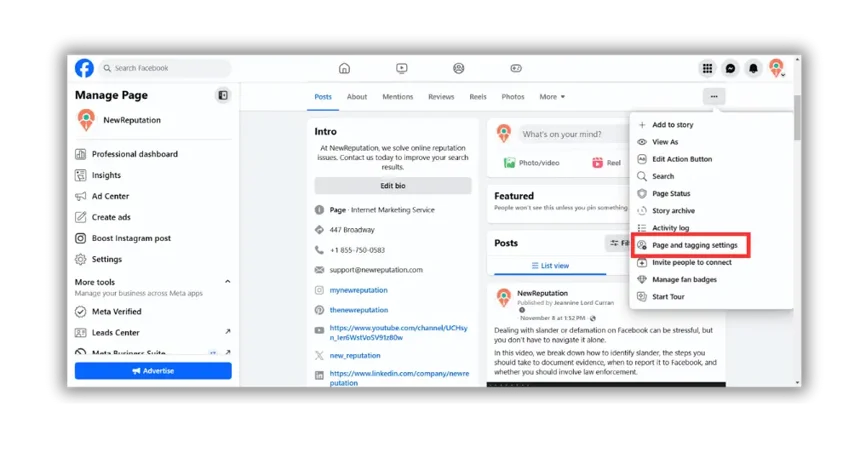
To turn off reviews, open your Facebook Page and go to your Page settings. Depending on which version of the Pages experience you use, look under your tabs or templates settings (sometimes labeled “Templates and Tabs”) for the Reviews or Recommendations tab, and switch it off. Facebook updates this layout periodically, so the exact path may differ slightly, but the setting lives in your Page’s tab or privacy settings.
Before you do this, think it through. Turning off reviews makes the most sense in a narrow set of cases:
- You have very few reviews and most are negative.
- The negative reviews do not reflect your actual business.
- You are rebuilding and want a clean start before generating new feedback.
If most of your reviews are positive, keep them. Positive feedback builds trust and helps new customers choose you. A Page with no reviews at all can actually look less trustworthy than one with a few mixed reviews handled well. In most cases, a handful of good reviews outweighs the occasional bad one.
A Better Long-Term Approach
Reporting and hiding are reactive fixes. The stronger long-term strategy is to build up so much genuine positive feedback that any single negative review barely registers. A business with a steady flow of recent, positive reviews is far more resilient than one with only a handful.
Make asking for reviews a habit. Request one from happy customers right after a good experience, and respond to every review you get. Over time, this builds a review profile that protects itself. Our guide on getting more positive reviews covers the approach, and it applies across Facebook, Google, and every other platform.
Frequently Asked Questions
Can you delete a negative review on Facebook?
No. Facebook does not let business owners delete reviews left on their Page, because reviews are meant to reflect genuine customer experiences. You can respond publicly, ask the reviewer to edit or remove it themselves, report it if it breaks Facebook’s rules, or turn off your reviews section entirely. Only the person who wrote a review can edit or delete that specific review.
How do I report a fake or abusive Facebook review?
Go to the review on your Page, click the three dots in the top right corner, choose the report option, and follow Facebook’s prompts to explain why the review violates its rules. Reporting works for reviews that contain spam, hate speech, fake content, or material unrelated to a real experience with your business. Facebook will not remove a review simply for being negative, so be specific about which policy it breaks.
How do I turn off reviews on my Facebook Page?
Open your Facebook Page settings and look under your tabs or templates settings, sometimes labeled “Templates and Tabs,” for the Reviews or Recommendations tab, then switch it off. Facebook updates this layout from time to time, so the exact path may vary, but the setting lives in your Page’s tab or privacy settings. Remember that turning off reviews hides all of them, positive and negative.
Should I turn off Facebook reviews to hide bad ones?
Usually not. Turning off reviews hides your positive reviews along with the negative ones, and a Page with no reviews can look less trustworthy than one with mixed reviews handled well. It only makes sense if you have very few reviews, most are negative and inaccurate, and you are rebuilding from scratch. In most cases, responding professionally and building more positive reviews is the better move.
Can I get a Facebook reviewer to remove their review?
Yes, if you earn it. Only the reviewer can edit or delete their own review, so the path is to resolve their actual problem first. Respond publicly, move the conversation to a private message, fix the issue, and then politely ask if they would consider updating or removing the review. Many people agree once they feel heard and the problem is solved. Never pressure them, since that can make things worse.
Dealing With Negative Reviews That Are Hurting Your Business?
NewReputation helps businesses respond to and report problem reviews, build up genuine positive feedback, and manage their reputation across every platform.
- Review reporting and professional response management
- Review generation that builds the volume to outweigh bad ones
- Monitoring across Facebook, Google, and other platforms

The NewReputation Help Center discusses brand reputation, online PR, search engine marketing, content marketing, and much more.