
Removing a business from Google Maps is possible, but only if you follow Google’s exact process. Many removal attempts fail because people use outdated instructions or confuse “permanently closed” with full removal.
This guide explains how to remove a business from Google Maps using the current system, including what to do if you own the listing and what to do if you do not.
Step 1: Confirm Whether You Own the Business Listing
Before taking any action, determine whether you are the verified owner of the business profile.
If you own the business, you can remove it directly through Google’s Business Profile Manager.
If you do not own the business, you must request removal through Google Maps and wait for review.
Ownership determines both the method and the outcome.
Step 2: If You Own the Business, Sign In Through Google Business Profile Manager
Owner removal is no longer handled directly inside the Google Maps interface.
To begin, go to business.google.com and sign in using the Google account that manages the business. This opens your Google Business Profile dashboard.
If you manage more than one location, select the correct business from the list.
If you cannot access the business here, stop. You are either logged into the wrong account or you are not the verified owner.
Step 3: Open the Business Profile Removal Settings
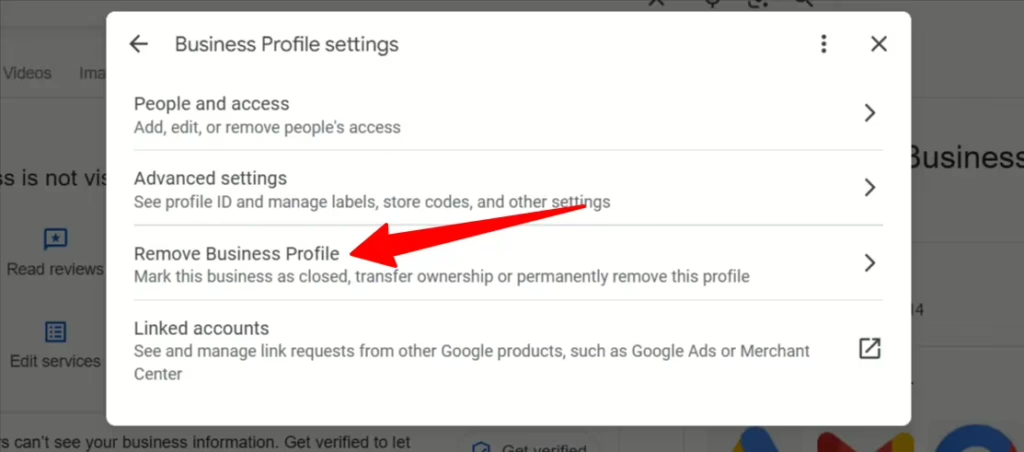
From the Business Profile Manager, open the business and go to Settings.
Inside Settings, select Remove Business Profile. This option is only visible to verified owners.
This is the only path that allows true removal rather than partial closure.
Step 4: Remove the Profile the Correct Way
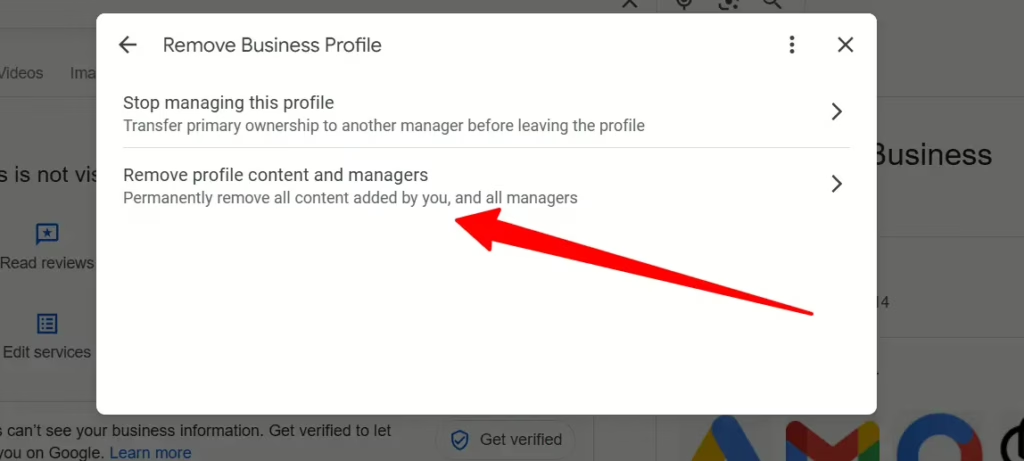
When prompted, choose Remove profile content and managers.
Google may also present an option to mark the business as permanently closed.
If your goal is full removal, do not select “Mark as permanently closed” unless Google requires it. Leaving this unchecked increases the likelihood that the profile will be removed entirely rather than preserved as a historical listing.
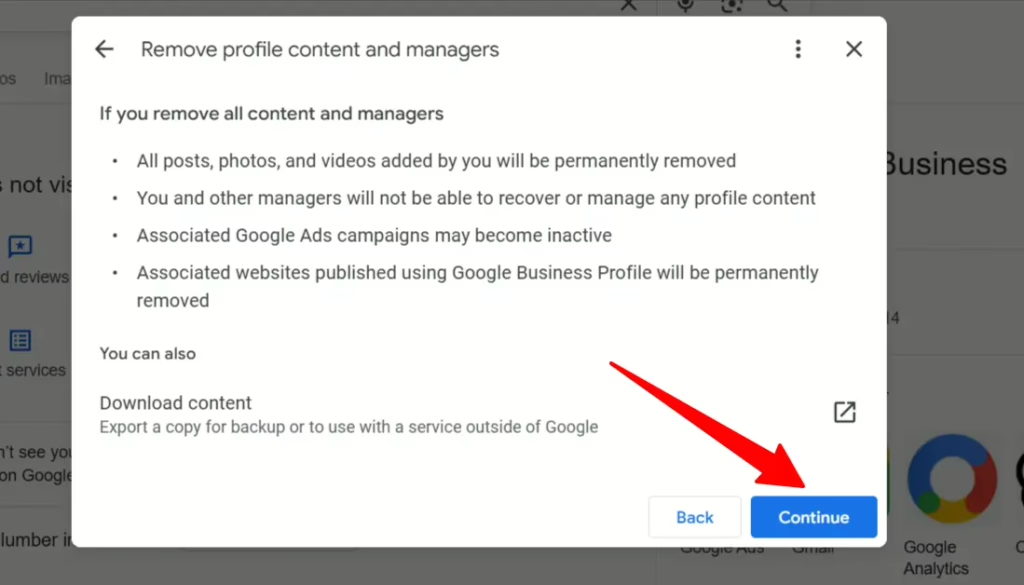
Confirm the removal.
Step 5: Wait for Google to Process the Removal
After confirmation, Google processes the request.
In most cases:
- The listing is removed from Google Maps
- Reviews and photos are deleted
- The business name is detached from the address
Owner-initiated removals are usually completed within a few days, though some profiles may take longer depending on Google’s internal checks.
Step 6: If You Do Not Own the Business, Open Google Maps
If you do not control the listing, you cannot remove it directly.
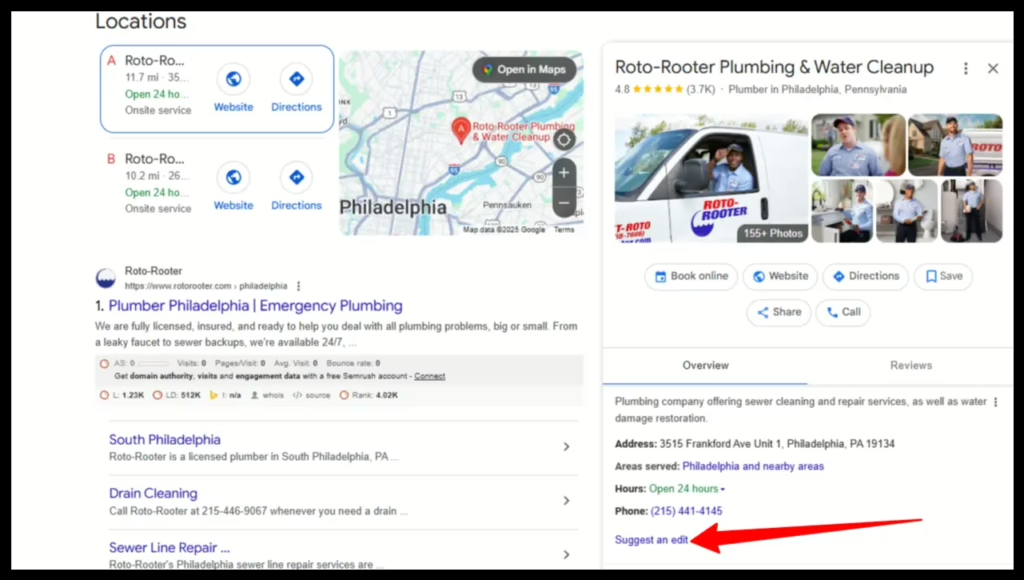
Open Google Maps and search for the business name exactly as it appears. Click the listing to open its full profile.
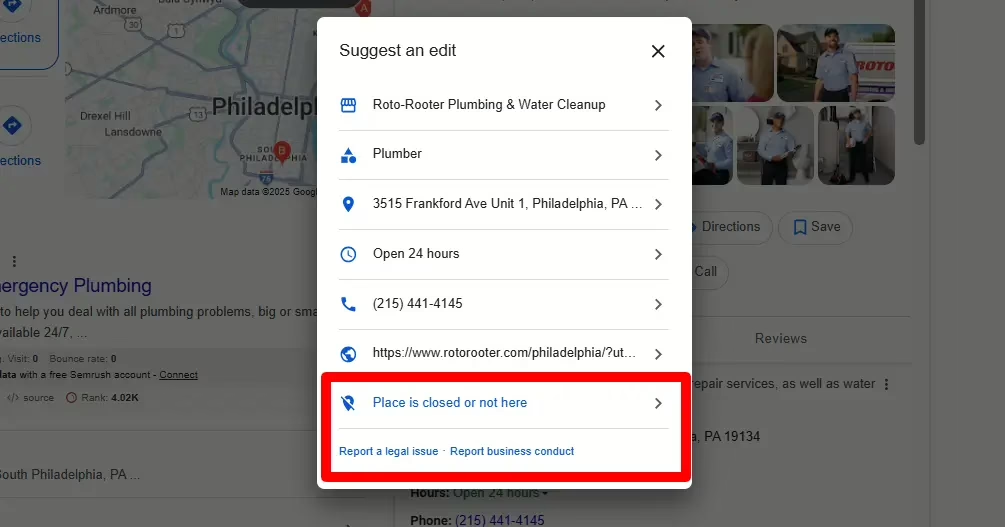
Scroll down until you see an option to suggest an edit or report the place.
Step 7: Submit a Removal Request Through “Suggest an Edit”
Select Suggest an edit, Close, or Remove.
Google will ask you to choose why the business should be removed. This step determines whether the request succeeds or fails.
Step 8: Choose the Correct Reason Carefully
Select the option that accurately reflects the situation.
Use “Permanently closed” if the business existed but no longer operates.
Use “Doesn’t exist here” if the business never existed at that location.
Use “Moved to a new location” only if the relocation is verified.
Choosing the wrong reason is one of the most common reasons for rejection.
Step 9: Submit the Request and Allow Time for Review
Once submitted, Google evaluates the request using:
- User reports
- Public records
- Location and activity data
- Historical listing information
There is no guaranteed timeline. Some requests are resolved quickly. Others may take weeks.
Google rarely provides detailed explanations for approvals or denials.
Step 10: Understand the Difference Between Closed and Removed
Many people assume that marking a business as permanently closed removes it from Google entirely. This is not always true.
A permanently closed business may:
- Stop appearing in most local searches
- Still appears when searched by name
- Remain tied to an address in Google’s database
If privacy or reputation is the concern, closure alone may not be sufficient.
Step 11: Check for Ownership Conflicts
If you see an option labeled “Own this business,” Google assumes the listing has an owner.
If you previously owned the business:
- Claim the listing
- Complete verification
- Then remove it through the owner process
If you cannot verify ownership, Google may limit removal options.
Step 12: Handle Duplicate or Old Listings Separately
If the problem is a duplicate listing or an old business tied to your address, report it specifically as a duplicate.
Duplicate reports are typically resolved faster than closure or removal requests, especially when a correct listing already exists.
Step 13: Know Why Google May Deny Removal
Google may deny a request if:
- The business existed historically
- Public records still reference it
- User reports conflict
- The reason provided is unclear or incorrect
A denial does not mean removal is impossible. It means stronger or more accurate signals are required.
Step 14: Monitor Search Results After Removal
Even after a listing is removed or marked closed, related information may still appear elsewhere online.
Business listings are often reused by:
- Data brokers
- Online directories
- Cached search results
Removing the Google Maps listing is often only one step in reducing unwanted visibility.
Final Thoughts
Knowing how to remove a business from Google Maps means following Google’s current process, not outdated shortcuts.
If you own the business, removal through Google Business Profile Manager is the most effective option.
If you do not own it, accuracy and patience are essential.
When a listing affects privacy or reputation, getting the removal right the first time can prevent long-term visibility issues and unnecessary frustration.